Meesho Shipping Labels: A4 Printer vs Thermal Printer
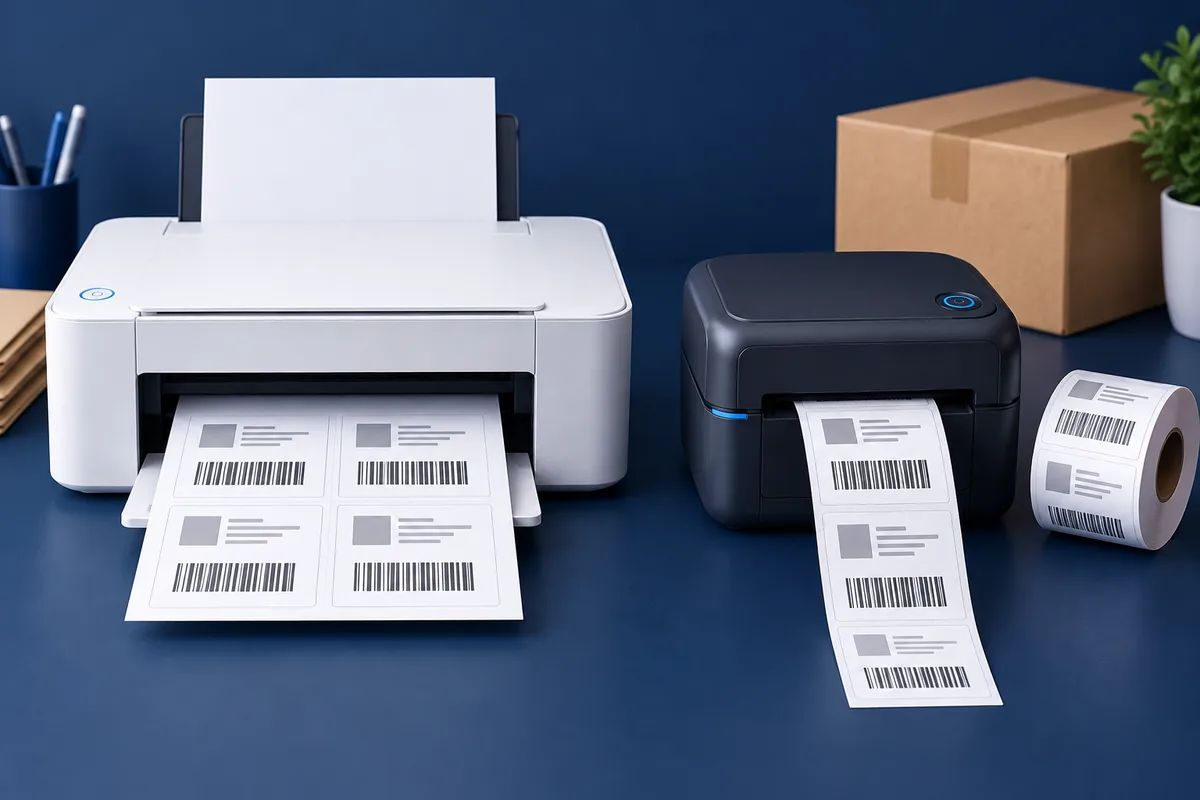
If you already own an A4 printer and dispatch a manageable batch, arranging several labels on one sheet can be a sensible place to start. A dedicated thermal label printer becomes worth evaluating when cutting, handling sheets and attaching labels take too much time. The decision depends on your workflow and actual costs, not a universal daily-order threshold.
What changes at the packing table?
An A4 inkjet or laser printer produces a sheet that may need cutting and attaching. Suitable adhesive sheets can change that workflow, but their label positions must match your output. A roll-fed label printer usually produces one adhesive label at a time, so the operator can peel and apply it.
Direct thermal printing uses heat-sensitive media without an ink ribbon; thermal transfer uses a ribbon. These are different technologies, so check which the printer needs before buying supplies. Zebra explains the two thermal printing methods.
| Consideration | A4 inkjet or laser | Direct thermal |
|---|---|---|
| Initial setup | May reuse a printer you already own; check its condition and supplies. | Usually a dedicated purchase; confirm connections, drivers and supported media. |
| Recurring supplies | Paper or compatible label sheets, ink/toner and attachment materials. | Compatible heat-sensitive adhesive labels; no ink ribbon for direct thermal. |
| Packing steps | Batch, print, separate and attach. | Print, peel and apply once media is configured. |
| Print quality | Depends on source PDF, scaling, print mode and printer condition. | Depends on source PDF, head resolution, darkness, speed and media. |
| Other work | Also handles invoices and ordinary documents. | Primarily useful for supported label formats. |
| Low-volume workflow | Convenient when an existing printer is sufficient. | Useful if immediate individual labels save enough handling. |
| Higher-volume workflow | Can still work, but sheet handling may become a bottleneck. | Worth testing for repeatable label feeding and faster handling. |
Compare costs using your own quotes
Get current prices for the printer and compatible consumables. Divide an A4 sheet's cost by the number of usable labels you actually print on it, then add ink or toner, attachment material and spoilage. For a thermal roll, divide the roll price by its usable label count and include misfeeds and reprints. Account for cleaning, maintenance and time on both sides.
For illustration only, suppose a new setup costs ₹6,000 more and saves ₹0.50 in consumables per label. The simple consumables-only break-even is 6,000 / 0.50 = 12,000 labels. These are invented planning inputs, not current printer or label prices. Labour savings, maintenance and financing can change the decision considerably.
Check compatibility before ordering hardware
- Confirm the required label dimensions for the actual courier workflow. A cropper's 4 x 6 inch preset is an output option, not evidence that every courier requires that size.
- Check printable width and supported label media, not only the printer's advertised paper width.
- Confirm that your computer or phone can send the PDF through a supported driver or app. Bluetooth availability alone does not guarantee PDF printing compatibility.
- Ask for a test using one of your real label PDFs, with customer information handled appropriately. Inspect the printed address and tracking code.
- Match roll size, gap or black-mark sensing and printer settings. Wrong media settings can cause wasted labels even when the PDF is correct.
Use the same original PDF for either workflow
The SyncTonight Label Cropper can arrange selected labels on A4 sheets or produce a single-label thermal layout. Select the intended sheet type, inspect the preview and use a matching paper size in the printer dialogue. Choose fewer labels per A4 sheet if the required text becomes too small.
For the A4 workflow, follow the step-by-step cropping and printing guide. Do not print an already arranged A4 sheet as four pages per sheet again. For thermal printing, check that the downloaded PDF dimensions match the loaded stock before sending a full batch.
Barcode quality matters more than the printer category
Neither printer type can repair a blurry screenshot or restore a barcode that was cropped away. Keep the original PDF, retain white space around codes, and test the actual printed result. Too little darkness can leave gaps; excessive darkness can merge nearby bars. Use the printer manufacturer's settings guidance rather than assuming maximum darkness is best.
Direct thermal images can be affected by heat and light, as Zebra notes in its thermal comparison. Choose suitable media for the expected journey and avoid storing printed labels in unsuitable conditions. Check courier requirements instead of assuming every adhesive or thermal roll is acceptable.
Make the decision with a small packing trial
Print a representative batch, including the longest address and the most detailed label. Count spoiled prints and time the entire process through attachment, not just the printer's output speed. If A4 remains clear and easy to handle, keep it. If label handling is slowing dispatch, use the measured time and consumable costs to assess a dedicated printer.
Related Guides
Include paper, adhesive labels and packing materials when calculating your real Meesho profit. A quicker packing process is useful, but the selling price still has to cover its costs.
Found this helpful?
SyncTonight's tools and guides are free and always will be. If this post saved you some debugging time, a coffee goes a long way — no pressure, just appreciated.
☕ Buy me a coffee